Installing Boundless Desktop on Windows
This section will describe how to install Boundless Desktop on Windows.
Prerequisites
Boundless Desktop can run on any recent hardware/software combination. See Windows system requirements for more details.
Install
To install Boundless Desktop on windows:
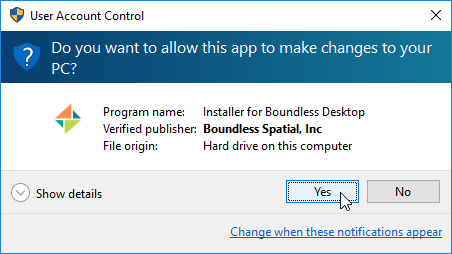
Double-click the downloaded installer file (Administrator permissions needed). If Windows’ User Account Control asks you permission to allow the app to make changes, click YES.
In the Welcome screen, click Next.
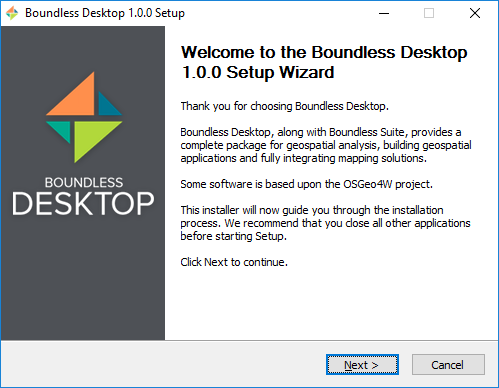
Welcome screen
Read the License Agreement. Then, click I Agree.
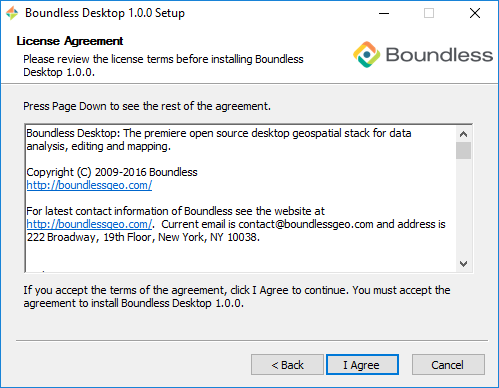
License agreement
Read the Read Me. Then, click Next.
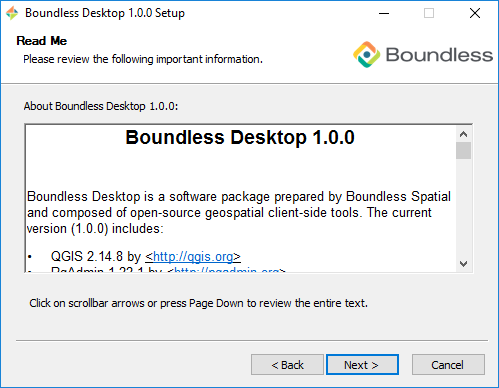
Read me file
Select the Destination folder where you would like to install Boundless Desktop, and click Next.
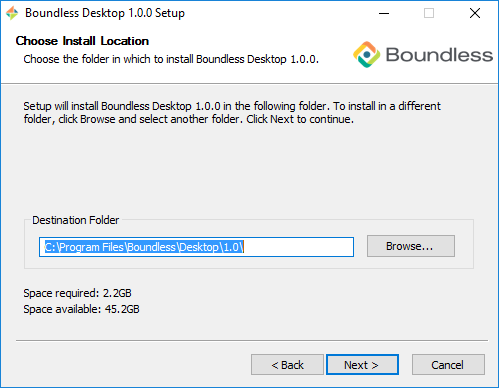
Destination folder for the installation
Select the name and location of the Start Menu folder to be created, and click Next.
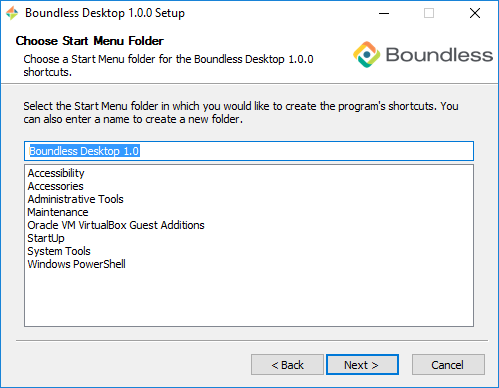
Start Menu folder to be created
Check the components you would like to install. You can hover the mouse over a component’s name to see a full description of it. Click Next.
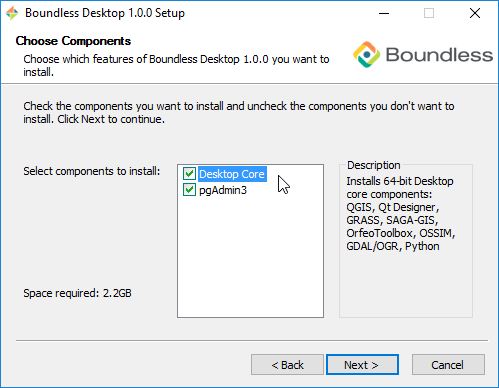
You are ready to install the software. Click Install to start the installation.
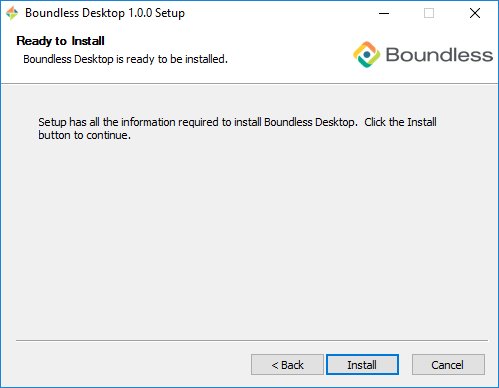
Ready to install
Please wait while the installation proceeds.
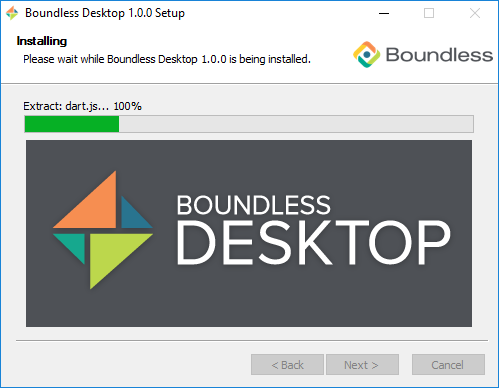
Installation
After installation, click Finish.
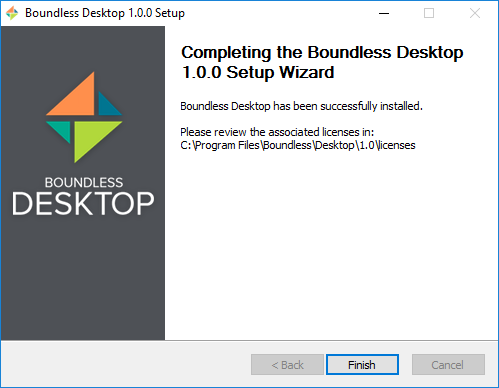
Boundless Desktop successfully installed
After a successful install, Boundless Desktop components, such as QGIS, can be run from shortcuts in the Start Menu (see Quick start guide for more information).